
 More
MoreHow to Use the Ather App: A Beginner’s Guide to Smart Scooter Features
Introduction
When you buy an Ather, you aren’t just getting a scooter; you’re getting a high-performance computer on wheels. While the dashboard handles the ride, the Ather App is the remote companion for your entire ownership experience. From tracking your charging progress while you sip coffee to receiving Theft & Tow alerts while you sleep, the app ensures you are always connected to your ride.
If you’ve just taken delivery of your new Ather 450X or Ather Rizta, here is a simple guide to getting started with the app and exploring the features that make your scooter truly "smart."
What Is the Ather App and Why Should You Use It?
The Ather App is the bridge between your smartphone and your scooter’s onboard computer. It uses the scooter's built-in 4G LTE connectivity to provide real-time data even when you are kilometers away from your vehicle.
Using the app is essential for anyone who wants to maximize their EV experience. It allows you to monitor your battery health, plan long trips with charging stops, and access a suite of security features that traditional scooters simply can’t offer. Without the app, you’re only using half of what your Ather is capable of.
How to Set-up and Connect the Ather App with Your Electric Scooter
Setting up the app is a breeze. Before you begin, ensure your smartphone meets the minimum requirements (Android 10+ or iOS 16+).
Step 1: Download and Log In
Download Ather app from the Google Play Store or Apple App Store. To log in, use the registered mobile number you provided during your purchase. You will receive an OTP for verification.
Pro Tip: The app supports multi-device login, so your family members can also stay updated on the scooter's status using the same account.
Step 2: Pairing via Bluetooth
While the scooter has its own 4G SIM for remote data, Bluetooth pairing is essential for WhatsApp on Dash, Call & Music controls, and more on your dashboard.
- On your scooter dashboard, go to Settings > Connectivity > Bluetooth and turn it on.
- Just take out your phone and scan the QR code shown on the scooter dashboard. (Applicable only for 450X, 450 Apex, and Rizta Z.)
- Alternatively, you can open the Ather App and tap on the Bluetooth icon on the homescreen.
- Allow all permissions requested while pairing—location, notification access, etc.—to ensure a seamless experience.
- Select your scooter’s name and accept the pairing request on both your phone and the dashboard.
Pro Tip: 450X, 450 Apex, and Rizta Z support multiple device pairings. Whoever uses the scooter, their phone will get autoconnected. For 450S and Rizta S, only one device can be paired at a time.
What Smart Features Does the Ather App Offer?
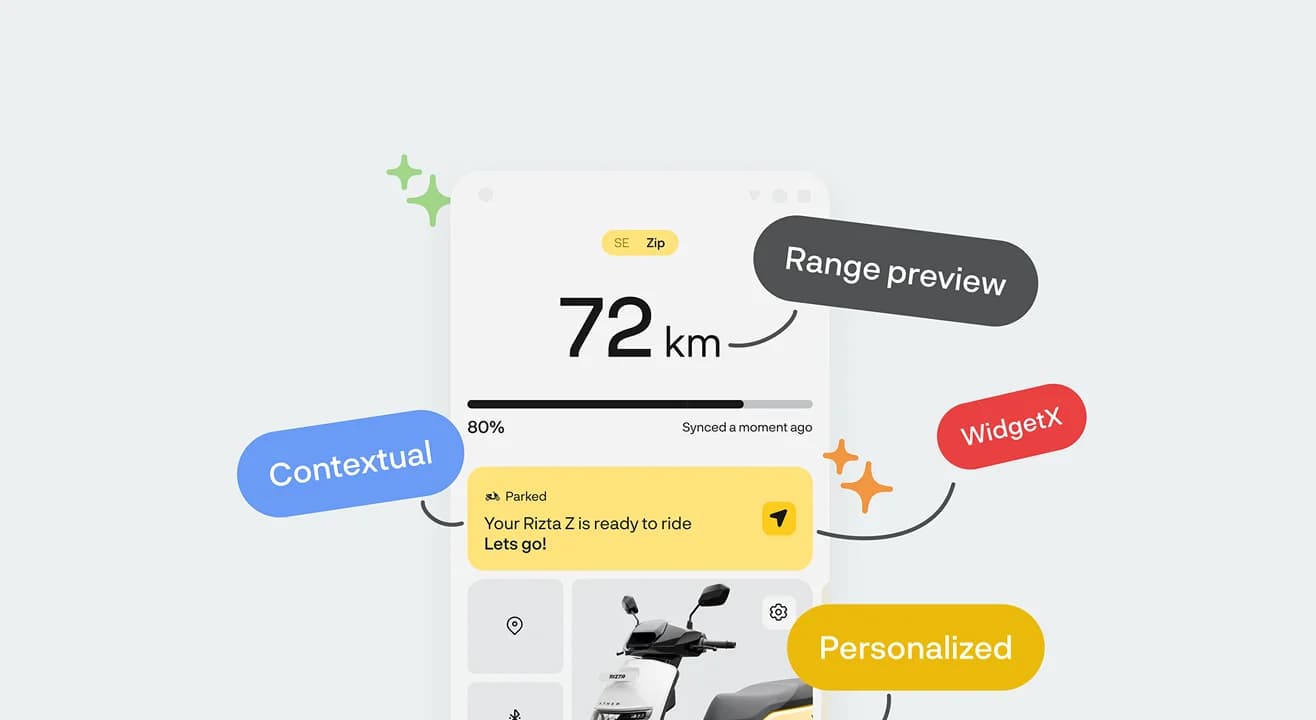
Once you’re logged in, the home screen gives you a "snapshot" of your scooter's vitals like charge, range, riding status, and location.
- Remote Charging & Vehicle Status: Check your exact battery percentage and TrueRange (the actual distance you can travel based on your riding style). With the AtherStack 7 update, you can even remotely stop charging or shut down your scooter.
- Push Navigation to Scooter: Search for a destination on the app or "Push" a location pin from WhatsApp directly to your scooter. 450X and Rizta Z users will see Google Maps.
- Safety and Security:
- Theft & Tow Alerts: Get instant notifications if your scooter is moved while parked.
- Find My Scooter: Tap Ping My Scooter in a crowded lot to make your ride flash its lights and emit a sound.
- Live Location Sharing: For late nights, share your location with emergency contacts by pressing the start button thrice.
How to Monitor and Analyze Your Rides Using the Ather App
Ride Stories
Want to know how efficiently you’ve been riding? The Ride Stories (formerly Ride Statistics) section breaks down your trips. You can see your top speed, average efficiency, and even "Badges" you’ve earned for Top efficiency, Top Speed, or Longest Distance in Warp Mode. You can even share these highlights directly to
Instagram or WhatsApp to show off your green credentials!
How to Find Ather Grid Charging Stations Using the App
Ather Grid Locator
Running low on juice? The app is your best friend on the road. It shows you the nearest Ather Grid fast-chargers in your city, their current availability (so you don't wait in line), and the fastest route to get there. You can even monitor the charging progress from your phone while you grab a quick snack nearby.
How to Fix Common Ather App Issues
Sometimes technology needs a little nudge. If you're facing issues, try these quick fixes:
- Sync Issues: If your app isn't showing the latest battery percentage, try a "Dashboard Reset" by holding both brakes and the start switch simultaneously for a few seconds.
- Bluetooth Pairing: If your phone won't connect, "Forget" the device on both your phone's Bluetooth settings and the scooter's dashboard, then re-pair using the QR code.
- Location Inaccuracy: Ensure that "Precise Location" permissions are granted to the Ather App in your smartphone settings.
- Support: For anything more complex, use the Support tab in the app to raise a ticket or get expert help without having to wait on a long customer care call.
Conclusion
The Ather App is more than just a digital dashboard; it is the heart of a sophisticated ecosystem designed to make electric ownership effortless. By integrating your scooter’s health, your personal riding habits, and a vast charging network into one interface, it removes the guesswork from your daily commute. As we move toward a more connected future, the Ather App will continue to evolve, serving as your primary gateway to a smarter, cleaner, and more personalized way to move through your city.

 Garvit Minocha5 min read
 Anand Kumar4 min read
 Abhishek Balaji5 min read
Wish to know more about Ather?
The best things about an Ather can’t be put in words, or captured in images. We’ll take up all your questions, just drop us your number. We’ll call you.
